Meetings · A Scribe guide
AI Meeting Notes Without a Bot: How to Record and Transcribe Meetings
Record browser meetings without a bot. Learn how to capture both sides, review a transcript and create useful meeting notes with Scribe.
You can make AI meeting notes without inviting a recording bot. In Scribe, join your meeting in desktop Chrome, capture your microphone and the meeting tab’s audio, then upload the recording for a transcript and notes. Only audio is saved. Tell the participants you are recording and follow your organisation’s recording rules before you start.
In this guide
What happens when there is no meeting bot?
A meeting bot usually appears as another participant. A browser recorder works from the tabs you select instead. You stay in control of when capture starts and stops, and there is no extra attendee to admit. This can suit a client conversation or a one-to-one where you want to stay involved rather than type everything.
Bot-free tools use different capture methods. Some need a desktop application, some need an extension, and some record a browser tab. Scribe’s web workflow needs no browser extension or mobile download. It captures the meeting you have opened in a desktop Chrome tab together with your own microphone.
| Method | What to check |
|---|---|
| Browser tab recording | Select the meeting tab and include its audio; connect your microphone separately. |
| Desktop recording | Check supported operating systems, audio sources and installation requirements. |
| Meeting participant bot | Check admission, calendar access and who receives the recording. |
Choose by where the sound actually plays. A meeting in the Teams or Zoom desktop application is outside Scribe’s browser-tab capture. Open it in Chrome, or import a recording you are allowed to use.
Check these four things before the call
- Permission: let everyone know you will record and transcribe. Check the organisation’s rules for using a transcription service.
- Browser: use desktop Chrome and join the meeting in a tab, rather than its desktop application.
- Allowance: check the minutes available in your account. Free includes 30 transcription minutes each month; it will not cover a full hour-long call.
- Power: keep Scribe open and the computer awake throughout capture. A short test is easier to fix than a silent meeting recording.
Headphones can help avoid the microphone picking up sound coming from your speakers. You still need to share tab audio: the other participants’ voices should come from the selected meeting tab, not from sound leaking into your microphone.
Record both sides of a browser meeting in Scribe
- Open your meeting in one Chrome tab and Scribe’s web app in another. Sign in or create an account.
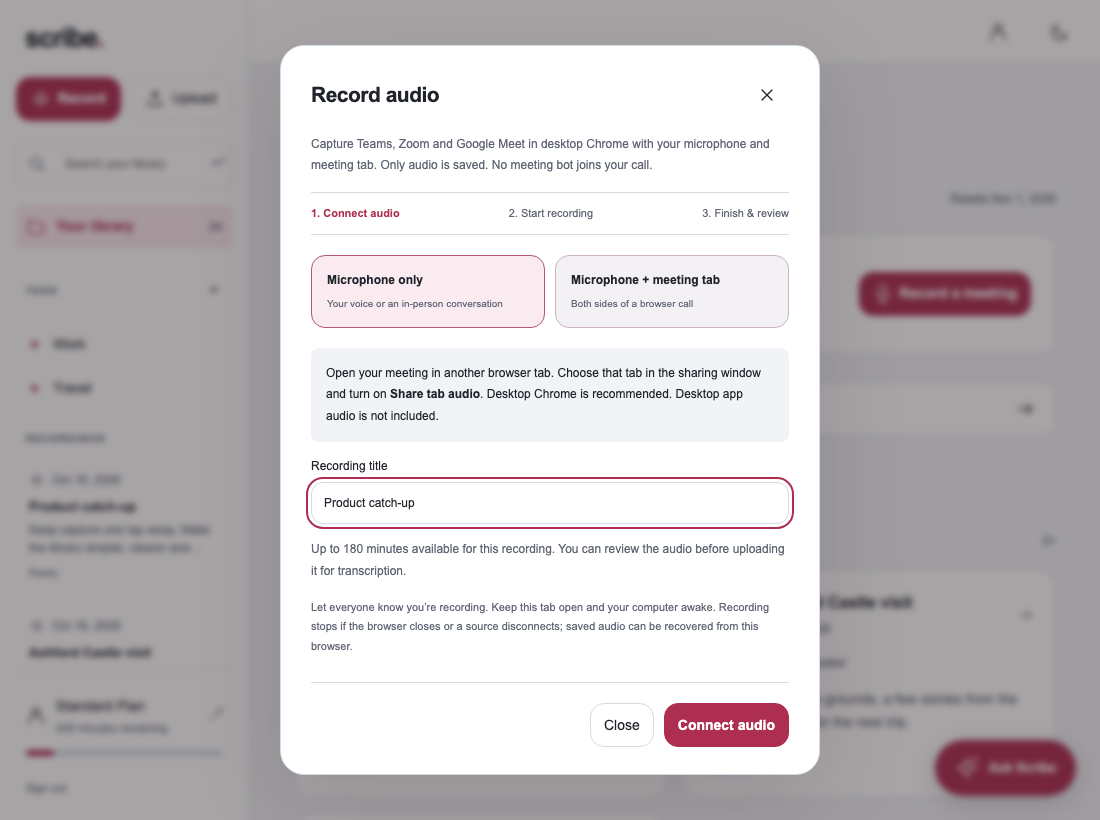
- In your library, choose Record, then Microphone + meeting tab. Give the recording a useful title.
- Choose Connect audio. In Chrome’s picker, select the meeting tab and enable Share tab audio. Allow your microphone when the browser asks.
- Check both input meters while you and another participant speak. Start only when both sources are present.
- Choose Start recording. When the conversation ends, choose Finish & review.
- Listen to the saved audio, then choose Upload & transcribe. You can download an audio backup from the review screen.
Turn the transcript into decisions and follow-up
After processing, read the transcript and check speaker labels before making notes. Correct a misheard project name or number while the audio is still easy to find. Then create Meeting notes and review the supporting transcript passages attached to the generated points.
You can edit the notes before sharing them. For a repeatable format, use our meeting minutes and action items guide. Standard and Pro also include Ask Scribe for questions with answers linked to your notes.
Fix missing sound before recording the whole call
Only your own voice is present: the meeting tab may not be connected, or Share tab audio may be off. Reconnect and select the tab that is actually playing the meeting sound.
Only the other participants are present: check microphone permission, the selected input device and the microphone meter. A headset change can affect which device you need.
The meeting is in a desktop app: tab sharing does not capture it. Join through the platform’s browser option if it is available, or import an existing recording instead.
You need a live transcript: this Scribe workflow records first and transcribes after upload. It is not live captioning. Do not rely on it to display words during the conversation.
Common questions about bot-free meeting notes
Does no bot mean nobody needs to know?
No. You are still recording people. Inform them and follow the applicable meeting and workplace requirements. A different capture method does not change that responsibility.
Is the meeting video saved?
Scribe’s browser meeting recorder saves audio. It does not create a meeting video or record the slides. Keep any documents you need separately.
Can I use the recording on my phone later?
Once uploaded, your recording, transcript and notes belong to the same Scribe account you use on Android and the web. A recording saved only inside one browser has not yet reached that shared library.
Sources & further reading
Product instructions and links checked 17 October 2026. Community discussions informed the questions covered here; they are not product benchmarks or testimonials.