Meetings · A Scribe guide
How to Transcribe Microsoft Teams Meetings Without a Bot
Create a Teams transcript without a meeting bot using desktop Chrome. Check native options, capture both audio sources and make meeting notes.
You can transcribe a Teams meeting without a participant bot by joining Teams in desktop Chrome and recording the meeting tab plus your microphone with Scribe. Finish the recording, review the audio and upload it for transcription. This does not capture the Teams desktop application. Check that your organisation allows recording and the use of Scribe, and tell participants before you begin.
In this guide
Understand native Teams transcripts first
Teams can provide native transcription. Who can start it and access the result depends on meeting roles, settings and organisational policies. If a transcription control is unavailable, ask the organiser or administrator what is permitted. Microsoft’s transcription troubleshooting page explains the current native controls.
A Scribe browser recording is a separate capture and upload workflow. It is useful when an approved personal recording fits your needs, but it does not unlock a Teams control, recover someone else’s transcript or override a workplace restriction.
| What you have | A useful next step |
|---|---|
| An existing Teams transcript | Ask the organiser for authorised access; avoid duplicating work. |
| A recording file you may use | Upload the file to Scribe for transcription. |
| An upcoming browser meeting | Connect the Teams tab and your microphone in Scribe. |
| A Teams desktop-app call | Use an available browser join option or an approved recording export instead. |
Open the meeting in Chrome, rather than the desktop app
Open the invitation and use Teams’ browser join option if it is available for your meeting. Check that the actual call is running in a Chrome tab. Leaving a browser invitation open while the conversation runs in the desktop application will not give Scribe the application’s audio.
Join with the microphone and headphones you intend to use. Open Scribe in another tab, sign in and check the minutes remaining in your account. The Free plan includes 30 transcription minutes each month; a long team review may require more allowance.
Tell the participants about the audio recording and intended notes. Keep supporting documents in their normal approved location. Scribe’s audio recorder does not save a Teams chat, screen-sharing video, whiteboard or presentation file.
Capture both sides of the Teams conversation
- In your Scribe library, choose Record.
- Select Microphone + meeting tab and enter a useful title.
- Choose Connect audio. Select the Chrome tab containing the Teams meeting and turn on Share tab audio.
- Allow microphone access. Check that the microphone meter responds to your voice and the meeting meter responds to another speaker.
- Choose Start recording. Keep Scribe open and your computer awake.
- At the end, choose Finish & review. Listen to the audio and choose Upload & transcribe when it is ready.
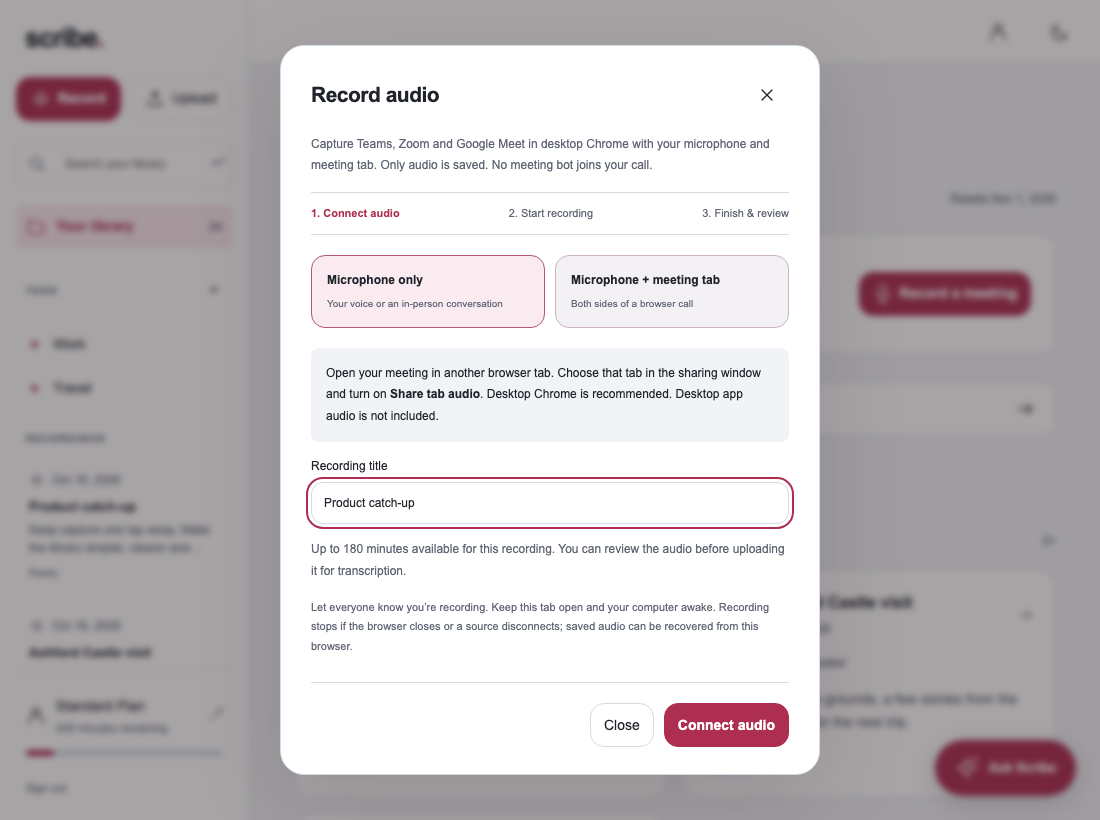
Once you have connected the sources, check a short exchange before committing to a long meeting. A clear indication that Chrome is sharing a tab is useful, but the two meters tell you whether the expected audio is actually reaching the recorder.
Review speakers and make a meeting record
Open the completed transcript and rename speaker labels only when you can identify the people from the recording. Scribe’s mixed microphone and tab audio does not provide the Teams participant list as verified speaker identities. Overlapping conversation can still need correction.
Check acronyms, project names, numbers and any decision that will drive work. Then generate Meeting notes. Review the source passages attached to important points, edit the notes and keep unresolved questions visible.
Our meeting minutes template separates decisions from actions and open questions. It is useful for recurring Teams calls where a summary must explain what changed since the last meeting.
Troubleshoot missing controls and missing audio
Teams transcription is greyed out
Check with the organiser or administrator. The availability of Teams’ own feature and permission to upload a separate recording are different questions. Do not treat an external recorder as automatic permission.
Scribe records me but not the meeting
Check that the call is in the selected browser tab and that Share tab audio is enabled. If Teams opened in its desktop app, rejoining in the browser may be necessary where allowed.
Scribe records the meeting but not me
Check microphone permission and the input device used by Scribe. Speak while watching the microphone meter. Changing headsets during a meeting is a reason to recheck both applications.
I only need a transcript of an existing file
Use Upload rather than replaying the file into your microphone. The audio file transcription guide covers formats, estimates and review.
Teams transcription questions
Can Scribe record Teams video?
This browser workflow saves audio only. Use your organisation’s approved process if you need a meeting video or screen-sharing record.
Can I record while the computer sleeps?
No. Keep the computer awake and Scribe open. If a source disconnects, review the saved recording; the time after disconnection may be missing.
Are the notes available on Android?
After upload, sign in to the same Scribe account to access the shared library. Audio saved only in a browser stays there until you upload it.
Sources & further reading
Product instructions and links checked 17 October 2026. Community discussions informed the questions covered here; they are not product benchmarks or testimonials.