Meetings · A Scribe guide
How to Record Google Meet Audio and Get a Transcript
Capture Google Meet audio in desktop Chrome, check both voices and turn the recording into a transcript and meeting notes with Scribe.
To record Google Meet audio with Scribe, open the meeting in desktop Chrome and Scribe in a second tab. Choose Microphone + meeting tab, select your Meet tab with Share tab audio enabled, and check both audio meters. After the call, review and upload the audio for transcription. This records audio rather than a meeting video; inform participants before starting.
In this guide
Check whether Meet already provides what you need
Google Meet has native recording and transcript features, but availability and who can start them depend on the account, meeting and administrator settings. A missing control does not necessarily mean your browser is broken. Check Google’s recording requirements and its transcript instructions for the current details.
If the organiser already supplies a transcript, ask for access before making a second recording. If you need a separate audio-to-notes workflow and are allowed to use it, Scribe can capture the Meet tab without adding a participant bot.
Choose the output that matches your task. Meet’s meeting recording and Scribe’s audio capture are different things. Scribe does not save slides, a gallery of participants or chat messages through this recorder. Keep shared documents and written decisions separately when they are part of the meeting record.
Prepare the Meet tab and your microphone
Join Google Meet in desktop Chrome. Make sure you can hear the meeting in that tab and that your microphone works in Meet. Open Scribe in another tab and check your remaining transcription minutes before the conversation gets going.
Let the participants know you will record audio and make a transcript. If your organisation requires a particular approved tool or recording process, use it. Browser capture is not a way to override an organisation’s decision about what may be recorded or uploaded.
Use a title that will make sense next week, such as “Client brief — website refresh”. A brief test with another person helps confirm that you have both sides of the conversation. Headphones can reduce sound from your speakers feeding back into the microphone.
Record Google Meet audio in six steps
- In Scribe’s library, choose Record, then Microphone + meeting tab.
- Enter a recording title and choose Connect audio.
- In Chrome’s sharing picker, select the tab with your Google Meet call. Enable Share tab audio before confirming.
- Allow your microphone and check both meters as you and another participant speak. Do not start with one source missing.
- Choose Start recording. Keep Scribe open and the computer awake while the meeting continues.
- When finished, choose Finish & review, listen to the result and choose Upload & transcribe.
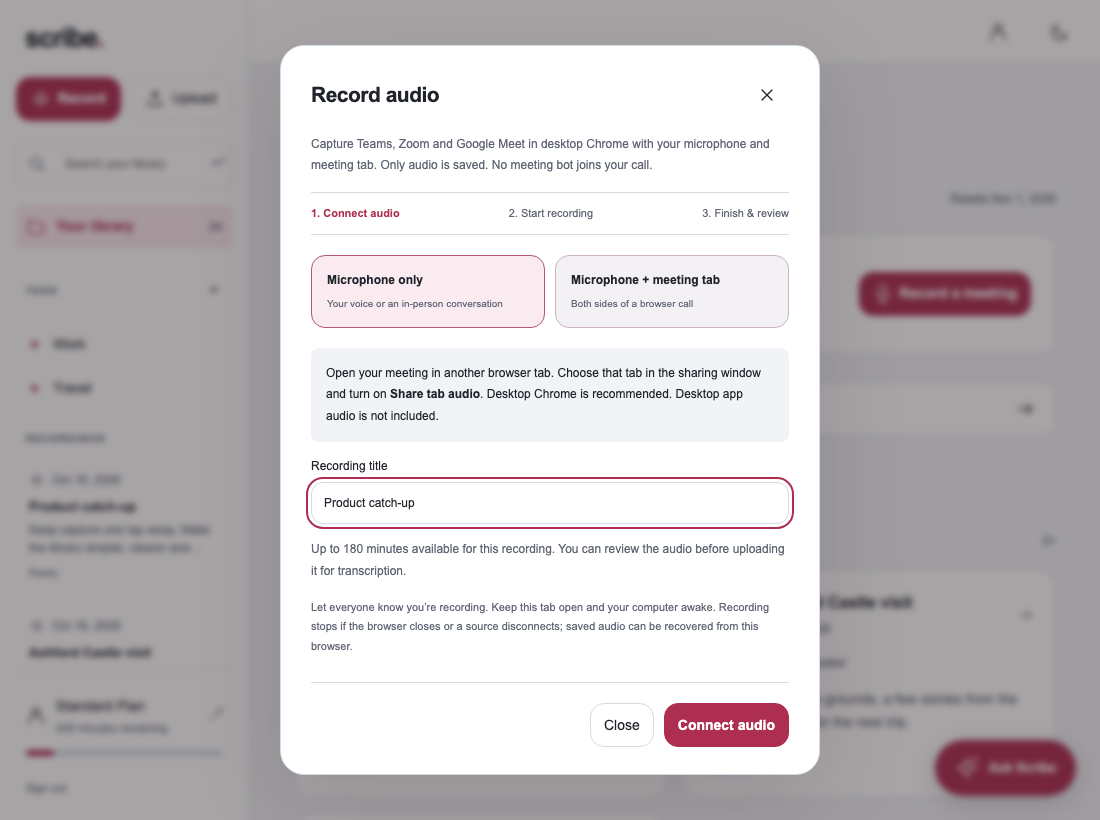
The browser controls which tab is shared. Selecting an entire screen or the wrong window does not establish that Meet’s audio is connected. Follow the tab-based workflow and check the meters rather than relying only on a sharing indicator.
Make the transcript useful after the call
Open the completed recording and check speaker labels, names, dates and amounts. A readable transcript can still contain a wrong number. Correct the important details before generating Meeting notes, then review the passages supporting the generated points.
Share the checked notes using the options available in Scribe, or export the material you need. Our minutes and action items guide includes a format for decisions, owners and open questions.
Why is Google Meet audio missing from my recording?
I can hear Meet, but the recording only has my voice
Hearing a call in your headphones is not the same as sharing its audio with Scribe. Reconnect the Meet tab and enable Share tab audio. Watch the meeting meter when someone else speaks.
The other person is recorded, but I am silent
Check Scribe’s microphone permission and input device. The microphone you selected in Meet and the device available to Scribe may need separate attention, especially after connecting a headset.
The recording stopped when I closed a tab
Keep the Scribe tab and the audio source open. Stopping sharing or closing the meeting source interrupts capture. Review any saved audio and use the recovery option if Scribe offers it; do not assume the missed portion was recorded.
Google Meet transcription questions
Can I try this with a free Scribe account?
Yes. Free includes 30 transcription minutes each month. Check the available balance before starting; a longer meeting may require a paid allowance. See current plans.
Does Scribe join as a Meet participant?
No participant bot joins through this workflow. You capture the audio sources you select in Chrome and upload the result yourself.
Will I see the transcript while people speak?
No. Scribe transcribes after you finish and upload. Use an appropriate live-caption feature if you need text during the meeting.
Sources & further reading
Product instructions and links checked 17 October 2026. Community discussions informed the questions covered here; they are not product benchmarks or testimonials.