Meetings · A Scribe guide
Turn a Meeting Recording into Minutes and Action Items
Create meeting minutes and action items from a recording. Use a copyable template and check decisions, owners and deadlines against the transcript.
To turn a meeting recording into minutes, transcribe the audio, check key details and organise the result into decisions, action items and open questions. Scribe’s Meeting notes format gives you a starting point with supporting transcript passages. Review those passages before sharing, and leave owners or deadlines unconfirmed when the recording does not state them. Use the template below for a consistent final record.
In this guide
Separate the conversation from the record of the meeting
A transcript follows what people said. Minutes help someone understand what was agreed and what happens next. Turning every sentence into a shorter sentence can still leave readers searching for the decision.
| Part of the record | What belongs there |
|---|---|
| Context | The purpose and information needed to understand the outcome. |
| Decision | An agreed outcome, with conditions where stated. |
| Action | A concrete next step and any stated owner or due date. |
| Open question | Something discussed but not settled. |
Use the format your organisation requires, especially for formal governance meetings. The template here is a practical working format for everyday team notes, not a claim that generated notes meet a particular legal or governance standard.
Create meeting notes from the recording in Scribe
- Open Scribe and upload the authorised audio or MP4 file. If the meeting has not happened, use the browser recording workflow or record an in-person conversation.
- Choose the spoken language, check the minute estimate and transcribe.
- Review names, numbers and important speaker turns in the completed transcript.
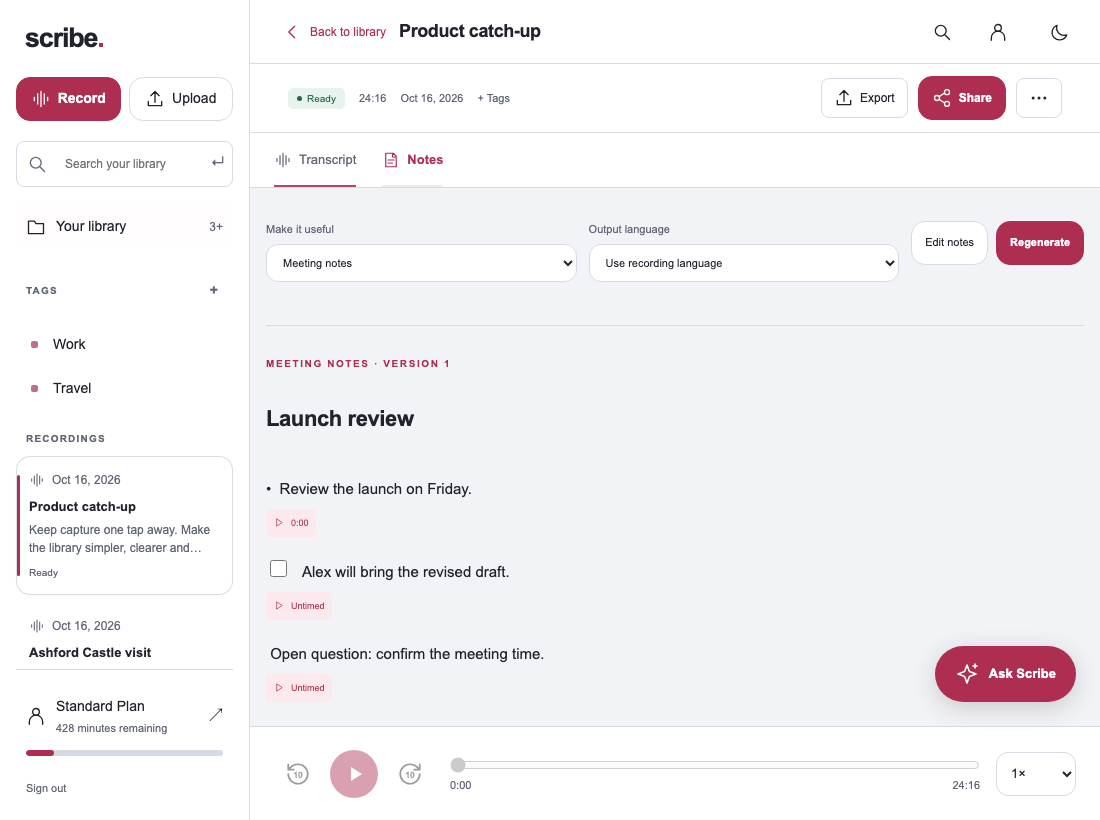
- Generate Meeting notes from the recording.
- Open the supporting passages for decisions and actions. Correct anything that changes the meaning.
- Edit the final notes into your preferred minutes format, then share or export the checked version.
Scribe’s Free plan includes 30 transcription minutes each month and all four note formats. Longer recordings need enough available allowance; see the plans before a full-length meeting.
Copy this meeting minutes template
Use a short, consistent structure. Fill in the meeting information yourself where it was not spoken in the recording. A timestamp or supporting passage makes important points easier to verify later.
MEETING MINUTES
Meeting:
Date:
Attendees:
Purpose:

DECISIONS
- Decision:
  Supporting passage or timestamp:

ACTION ITEMS
- Task:
  Owner: [confirm if not stated]
  Due date: [confirm if not stated]
  Supporting passage or timestamp:

OPEN QUESTIONS
- Question:
  Person to ask:

NEXT MEETING
Date or next check-in: [confirm if not agreed]
If a point appears in more than one section, make its role clear. A decision to prepare a revised proposal can lead to an action to write it, but the proposal itself may still need approval. Keep those stages distinct so a reader does not mistake “prepare” for “approve”.
Worked example: discussion, decision and action
The notes should not invent a Friday deadline because Friday was mentioned earlier in an unrelated part of the meeting. Nor should they assign the test scheduling to Alex just because Alex introduced the topic. Check the exact commitment and the surrounding discussion.
Where a deadline is relative, such as “next Thursday”, confirm the calendar date against the actual meeting date. Keep that clarification visible in your reviewed record.
Review the details most likely to cause follow-up confusion
- Agreement: was the idea accepted, merely proposed or left for later?
- Owner: did a person commit, or did someone suggest that they should do the work?
- Deadline: was a date agreed, estimated or never mentioned?
- Conditions: does the decision depend on testing, budget or approval?
- Scope: does the note describe this meeting, rather than an unsupported general rule?
Use the transcript and original audio to settle these questions. If the recording does not settle them, keep an open question and ask the relevant person through your usual workflow. Editing a summary until it sounds decisive does not establish that the team made a decision.
Before sharing, remove unnecessary personal information and check the audience. A useful internal detail may not belong in a customer-facing recap.
Keep the notes useful after the meeting
Use a clear title and your existing project tags so that the record is easy to find. Keep the recording, checked transcript and final notes together where possible. Uploaded material is available through the same Scribe account on Android and the web.
When you move actions into a task system, carry over the checked wording and agreed owner. Do not assume that exporting notes automatically assigns tasks, sends reminders or updates another system. Confirm the destination and the result for any integration you choose to use.
At the next meeting, start with open decisions and unfinished actions instead of reading the whole transcript. The benefit of structured notes is that you can return to the evidence when needed while keeping ordinary follow-up brief.
Questions about AI-generated meeting minutes
Can I generate minutes from handwritten notes?
This Scribe guide starts with an audio recording and transcript. The copyable template can also help you organise notes you already have, but uploading audio is a separate step.
Should I send the generated version immediately?
Review the decisions, conditions and commitments first. Keep unclear points marked for confirmation.
Does this replace the meeting’s official record?
Follow your organisation’s review and approval process. The generated draft is working material for that process.
Sources & further reading
Product instructions and links checked 17 October 2026. Community discussions informed the questions covered here; they are not product benchmarks or testimonials.