Study · A Scribe guide
How to Turn Lecture Recordings into Study Notes
Turn a recorded lecture into a checked transcript and study outline. Learn how to capture audio, review terminology and use Scribe’s lecture notes.
To turn a lecture recording into study notes, transcribe the audio, correct important terminology and generate an outline you can check against the lecture. Scribe can record or import audio and create a Lecture outline from the completed transcript. Start with permission to record and upload the material, and keep slides or reading references alongside the notes: an audio transcript will not contain everything shown on screen.
In this guide
A transcript and study notes do different jobs
A transcript helps you find and check what was said. A study outline groups the lecture into topics you can revisit. Keep both when possible: the outline is easier to revise from, while the transcript helps you verify the explanation behind a short bullet point.
Neither replaces your course materials. A lecturer may draw a diagram, write an equation or point to a slide without reading it aloud. Add the relevant slide number or textbook reference yourself. Do not assume that an AI note generator has seen visual material just because the recording came from the same class.
Before recording, check the lecturer’s and institution’s rules. If the university already provides recordings or an approved transcription service, start there. A personal study workflow should fit the course’s sharing and recording requirements.
Record clearly, or import the original lecture audio
For an in-person lecture, use Scribe on Android or the web to capture the microphone, where permitted. Position the device where the lecturer is audible and keep it away from typing, rustling bags and other nearby noise. A short test tells you more than the recording timer alone.
For an existing recording, keep the original file and upload it directly rather than playing it into a microphone. Scribe’s web app accepts MP3, AAC, M4A, WAV, MP4, OGG and Opus. See the file transcription guide for the upload checks.
For an online lecture in a desktop Chrome tab, Scribe can record the tab audio and your microphone. Follow the browser recording steps. Keep the computer awake and Scribe open. This workflow does not capture audio from a separate desktop teaching application.
Plan around the length of your lectures
Scribe’s Free plan includes 30 transcription minutes each month. That is useful for a short sample or seminar section, but it does not cover an ordinary hour-long lecture. Check the current allowances and your remaining minutes before recording or uploading.
Standard currently includes 500 minutes each month: eight hours and twenty minutes in total. Four one-hour lectures would use 240 minutes, before tutorials or other recordings. Pro includes 3,000 monthly minutes. Choose based on actual recorded duration rather than the number of files.
If you only need to revisit one topic, an authorised shorter excerpt may be enough. Preserve the full original and use your recording software to export the relevant section when necessary. Keep a clear title, such as “Ecology — population growth — lecture 3”, so the library is useful later.
Create a lecture outline in Scribe
- Open Scribe and choose Upload, or finish and review a new recording.
- Set a descriptive title, choose the spoken language and check the minute estimate.
- Choose Upload & transcribe and wait for the completed recording.
- Review key terms in the transcript, particularly names, units, formula descriptions and specialist vocabulary.
- Open the notes controls and choose Lecture outline.
- Review the supporting transcript passages, edit the outline and add any missing slide or reading references in your study materials.
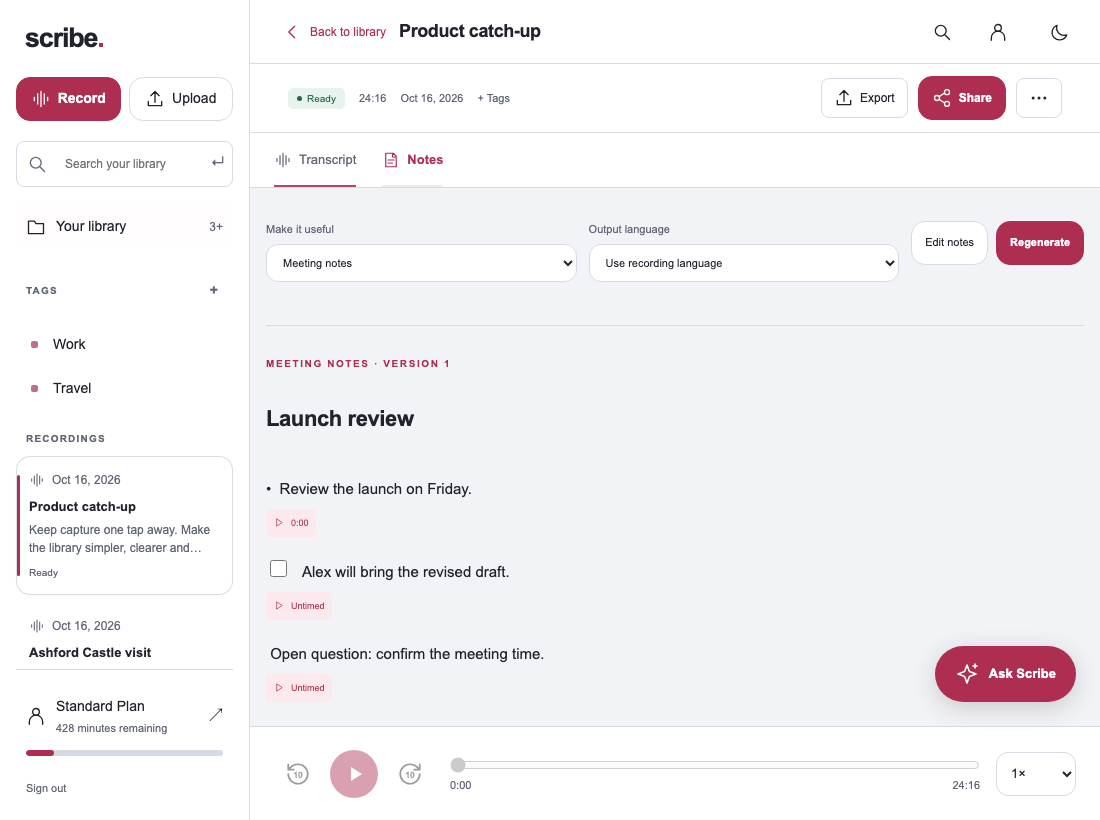
Make corrections before relying on a generated definition. If an outline was created before a substantial transcript correction, review or regenerate the relevant notes rather than assuming the old wording has been updated everywhere.
Turn an explanation into a revision prompt
This final step makes the notes useful for studying. After reviewing a topic, close the outline and try to explain it in your own words. Reopen the supporting passage for details you could not recall. You are using the generated outline to organise your review, rather than treating it as an answer key.
Keep unresolved questions visible. If the lecturer mentions an exception without explaining it, mark it for the tutorial or reading list. A shorter summary should not erase the uncertainty.
Handle noisy audio and unfamiliar terminology
The lecturer is distant: improve the recording position next time, within the room’s rules. For the current file, replay difficult passages and use the slides to verify terms. Do not fill inaudible gaps with invented explanations.
The transcript confuses similar terms: check the spoken language and correct the wording against the audio and course materials. A correctly spelt word can still be the wrong scientific term.
Several students speak together: review speaker changes manually. Keep the lecturer’s explanation separate from a student’s question when the distinction matters.
The notes miss a diagram: add its slide reference or your own explanation. Scribe’s audio workflow has not captured the drawing itself.
Questions about AI lecture notes
Does Scribe provide live lecture captions?
This workflow creates a transcript after upload. If you need text while the lecturer speaks, arrange an appropriate live-caption or university support option.
Can I record on Android and study on my laptop?
Yes. Upload the recording, then sign in to the same account on the web to access the shared library. Audio kept only on one device is not yet available elsewhere.
Should I share the notes with the whole class?
Follow the course’s rules for sharing recordings, transcripts and teaching material. Review the notes and remove personal information before any permitted sharing.
Sources & further reading
Product instructions and links checked 17 October 2026. Community discussions informed the questions covered here; they are not product benchmarks or testimonials.