Transcription · A Scribe guide
How to Transcribe Audio to Text: MP3, M4A and WAV
Turn an MP3, M4A or WAV recording into text. Follow the upload, speaker review and export steps, with clear free-plan limits.
To transcribe an audio file, upload the recording, choose its spoken language, run transcription and review the resulting text against the audio. Scribe accepts MP3, AAC, M4A, WAV, MP4, OGG and Opus in its web app. An account is required, and the Free plan includes 30 transcription minutes each month. You can then turn the transcript into structured notes.
In this guide
Start with the original recording
Find the audio file in your phone’s recorder, downloads or recording software. Keep a copy of the original until you have checked the transcript. Changing the file extension does not convert its contents: renaming a file from .m4a to .mp3 will not make it a different audio format.
| File | Typical source | What to do |
|---|---|---|
| MP3 | Downloaded speech or an exported recording | Upload the original file. |
| M4A / AAC | Phone recorder or meeting audio | Keep the existing format; conversion is usually unnecessary. |
| WAV | Recorder or audio software | Check the size before uploading. |
| OGG / Opus | Voice messages | Save the actual audio file, not a link to the message. |
| MP4 | A meeting recording | Transcribe the speech in the recording; this is not a video-editing workflow. |
The web upload screen shows a maximum of 500 MB and three hours. Your available transcription minutes can be the tighter limit. A supported extension does not guarantee that a damaged or unusual file will decode, so make sure the recording plays normally first.
Upload an MP3, M4A or WAV file to Scribe
- Open Scribe and create an account or sign in.
- Choose Upload in the library. Drop the file onto the upload area, or choose it from your device.
- Wait for the duration and file checks. Give the recording a title you will recognise later.
- Select the language spoken in the audio. Check the estimated minute usage and your available allowance.
- Choose Upload & transcribe. Keep the original file while the upload completes.
- Open the completed recording from your library and review the transcript.
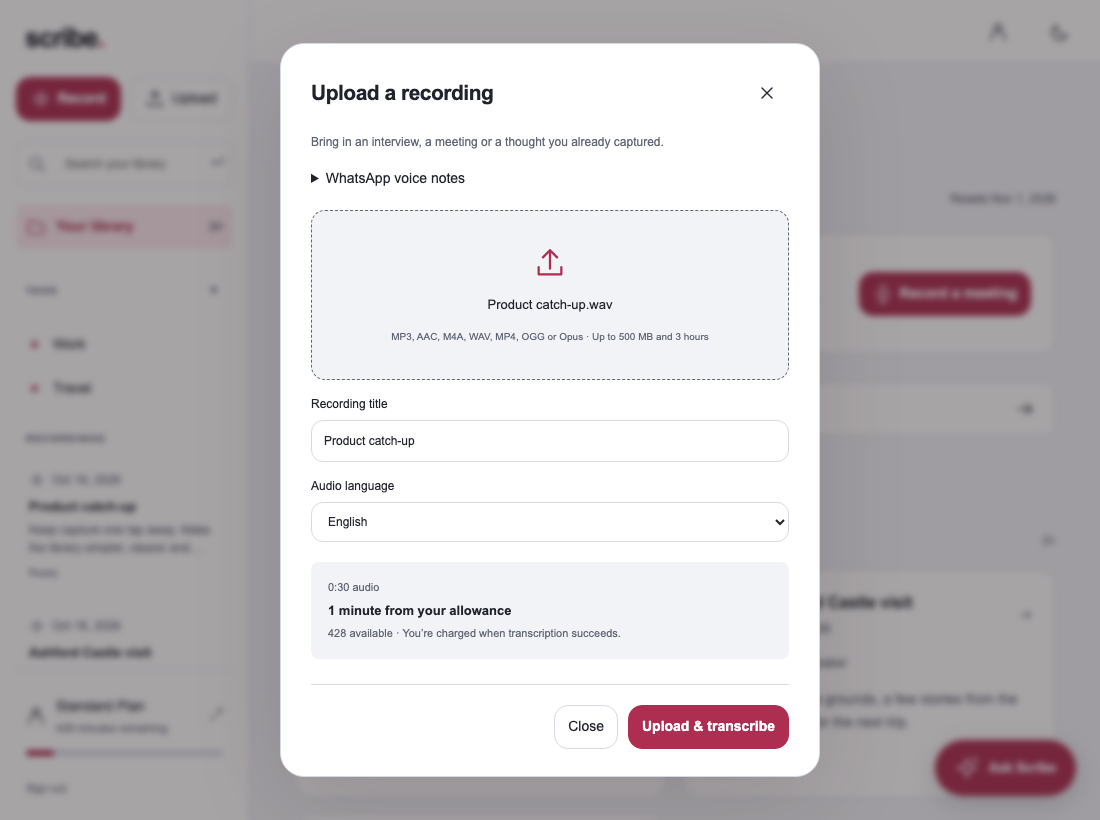
An interrupted upload can be resumed through Scribe’s saved upload flow. If your browser could not retain the local file, select the same original recording when prompted. Starting a separate upload unnecessarily can leave you with duplicate library entries.
What does free audio transcription include?
Scribe’s Free plan provides 30 transcription minutes each month, with speaker detection and the four note formats. This is a recurring allowance, not unlimited transcription. You need an account; there is no anonymous file-upload tool on this page.
A five-minute voice note is a practical way to test the workflow. A sixty-minute interview requires more than an unused Free allowance. Check the current plans before uploading a longer recording. Standard currently includes 500 monthly minutes and Pro includes 3,000; your account shows what remains.
The upload estimate tells you how much of your allowance the file needs. Scribe charges transcription minutes when processing succeeds. Do not assume that reducing a file’s storage size reduces its spoken duration: a compressed hour of audio still contains an hour of speech.
Review the words that could change the meaning
Read once for the overall conversation, then check names, dates, prices, technical terms and commitments. These are the mistakes that can turn a readable transcript into an unreliable record. Use playback to hear the original wording rather than guessing what the speaker probably meant.
Check speaker changes in a conversation. Automatic labels separate voices; they do not establish someone’s real identity. Rename speakers only when you know who is speaking. For detailed steps, see interview transcription with speaker labels.
Choose between a transcript and useful notes
A transcript preserves what was said. Notes organise the material for a purpose. Keep the transcript when you need to check quotations or review the sequence of a conversation; create notes when you need a meeting recap, lecture outline, interview themes or organised thoughts.
In Scribe, generate the appropriate note format from the completed recording and review the supporting passages. Check the generated output before sharing it. In the web app, use the recording’s export controls for text or Word output, choosing the content you need. Keep the original audio if it forms part of your working record.
If you are transcribing classes, our lecture-to-study-notes guide covers checking terminology and building a revision routine. If you already have a Zoom file, see the Zoom recording guide.
Common audio-to-text problems
The upload says the file cannot be used
Check the format, size and duration shown on the upload screen. Play the original locally to rule out an empty or damaged recording. Export a supported audio format from the original recording application if needed; do not merely rename it.
The transcript contains the wrong words
Confirm the selected language and listen for background noise, distant speakers or overlapping voices. Correct important passages manually. Transcription can reduce typing, but it cannot recover speech that is inaudible in the recording.
Can I paste a recording link instead?
This workflow needs a file on your device. Download an authorised copy first. A shared meeting URL or a link inside a messaging application is not an audio file.
Sources & further reading
Product instructions and links checked 17 October 2026. Community discussions informed the questions covered here; they are not product benchmarks or testimonials.