Meetings · A Scribe guide
How to Transcribe a Zoom Meeting or Recording
Get a transcript from an existing Zoom recording or capture a browser call with Scribe. Learn the file, audio and review steps.
If you already have a Zoom recording, upload its supported audio or MP4 file to Scribe, choose the language and transcribe it. For an upcoming call, you can capture your microphone and Zoom’s meeting tab in desktop Chrome, then upload the audio afterwards. Browser joining depends on the host’s settings. Tell participants you are recording and use only recordings you are authorised to process.
In this guide
Choose the route that matches what you have
People use “Zoom transcript” to mean several things: captions during a call, an account-provided transcript, or text created from a saved file. Establish which one you need before changing settings.
| Your starting point | Your route |
|---|---|
| An existing audio or MP4 recording | Upload the file to Scribe. |
| A transcript already supplied by the organiser | Request authorised access and review it. |
| A future Zoom call available in Chrome | Capture the meeting tab and microphone in Scribe. |
| A past call with no recording or saved transcript | Ask the organiser what was saved; Scribe cannot recover missing audio. |
Live captions are useful during a conversation, but seeing words on screen does not establish that you will have a saved transcript afterwards. Check the current options with the host before an important call. Zoom’s native recording capabilities depend on its settings and the user’s permissions.
Transcribe a Zoom recording you already have
- Find the recording file or ask the organiser for a copy you are allowed to use. A meeting invitation or cloud playback link is not itself an uploadable file.
- Check that the recording plays and includes the conversation you need. Keep a copy of the original.
- Open Scribe, sign in and choose Upload.
- Select a supported file, such as M4A or MP4. Add a title and select the spoken language.
- Check the duration, file size and minute estimate, then choose Upload & transcribe.
- Open the completed recording and check important passages against the audio.
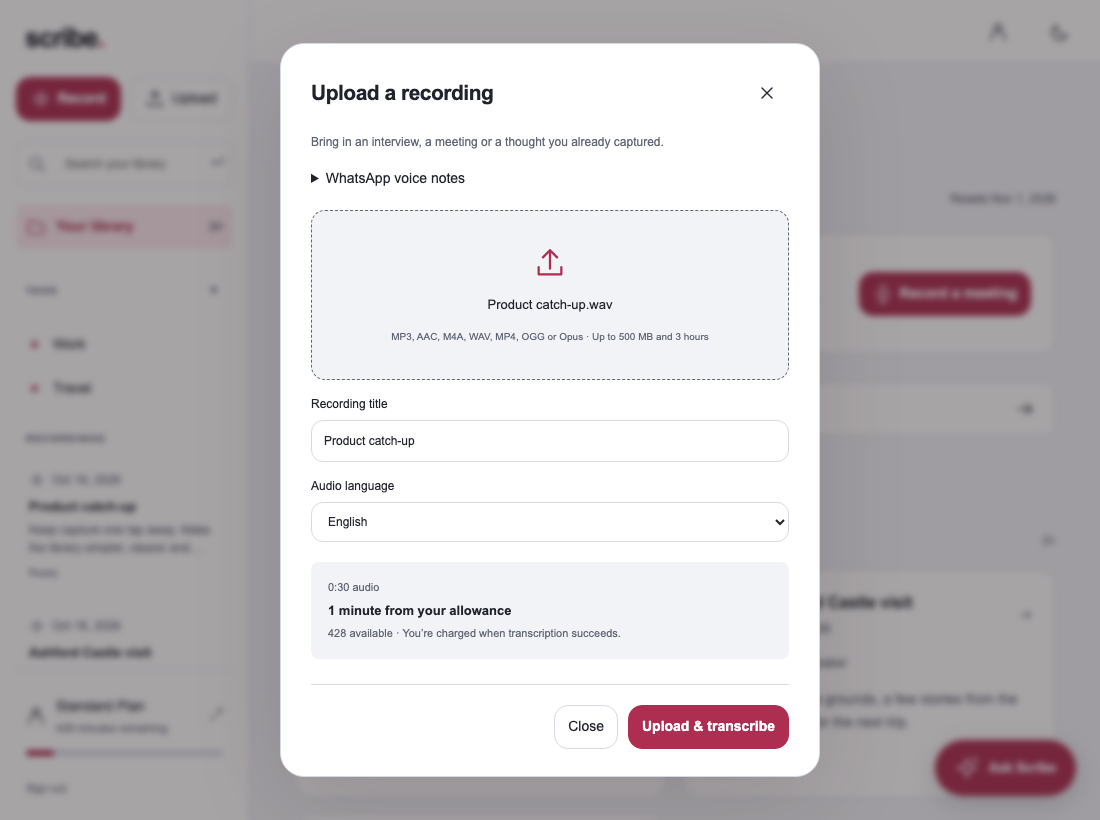
If the original application provides a separate audio file, you can use that instead of a larger video file. You do not need to replay the meeting through speakers to create another recording. The upload screen lists the formats and limits Scribe can accept.
Record an upcoming Zoom call in Chrome
Use Zoom’s browser join option where the host makes it available. Confirm that the live call is actually inside Chrome. A Zoom desktop-app meeting is outside Scribe’s meeting-tab capture, even if the invitation page remains open in a tab.
- Open the meeting in Chrome and Scribe in a second tab.
- In Scribe, choose Record → Microphone + meeting tab.
- Choose Connect audio, select the Zoom meeting tab and enable Share tab audio.
- Allow your microphone and check both meters during a short exchange.
- Start recording, keep the computer awake, then finish and review when the call ends.
- Listen to the audio and choose Upload & transcribe.
If browser joining is unavailable, ask the host about an approved recording or transcript. This workflow does not change Zoom’s host settings. Scribe saves audio rather than the gallery, screen share or meeting chat.
Check the transcript before making a summary
Review speaker labels, project names, dates and any quoted statement. Browser capture mixes your microphone with the meeting tab, so speaker labels should be checked rather than treated as verified Zoom participant identities.
Choose Meeting notes for a team call, or Interview themes for an interview. Review supporting passages for the points you plan to share. The interview guide explains a more detailed speaker and quotation workflow.
Check the allowance before a long Zoom recording
Scribe Free includes 30 transcription minutes each month and requires an account. A two-hour Zoom recording will not fit into that allowance. Standard currently includes 500 monthly minutes and Pro includes 3,000; see the current plans and your available balance.
The web upload screen supports files up to 500 MB and three hours. Both the file limits and available minutes matter. If a recording exceeds a limit, export shorter relevant sections using your recording software while preserving the original. Do not change the extension and expect the file’s duration or encoding to change.
For browser capture, leave enough allowance for the intended meeting and review the recording before upload. Scribe transcribes after processing, so this is not a replacement for live captions during the call.
Zoom transcription questions
Can I get a transcript if I forgot to enable it?
If you have an authorised recording file, you can upload it to Scribe. If no audio or transcript was saved, Scribe cannot recreate the conversation.
Do I have to be the Zoom host?
You need permission to record and process the conversation. Native Zoom recording controls and browser-join availability follow the meeting’s settings. Check with the host; this guide does not provide permission to bypass restrictions.
Will the transcript include slides and chat?
The audio transcript contains recognised speech. Save any slides, links and chat messages through the meeting’s appropriate sharing options.
Sources & further reading
Product instructions and links checked 17 October 2026. Community discussions informed the questions covered here; they are not product benchmarks or testimonials.