Comparisons · A Scribe guide
Scribe vs Otter: An Alternative for Android and Web
Considering an Otter alternative? Compare Scribe’s Android and browser workflow, free minutes, paid allowances and recording options with Otter.
Scribe is an Otter alternative for people who want to record or import audio on Android and the web, then turn it into transcripts and structured notes. Otter has a larger free transcription allowance and offers live transcription. Both offer bot-free recording through different workflows: Scribe captures a desktop Chrome meeting tab, while Otter supports bot-free capture through its desktop app. Choose around your actual recordings, rather than a single feature label.
In this guide
Scribe and Otter at a glance
We make Scribe. This comparison describes our workflow and Otter’s advertised features, rather than an independent audio-accuracy benchmark. Pricing and allowances below were checked on 17 October 2026. USD monthly prices are shown; annual, local and store prices can differ.
| Feature | Scribe | Otter |
|---|---|---|
| Free monthly transcription | 30 minutes | 300 minutes |
| Entry paid monthly plan | Standard: $7, 500 minutes | Pro: $16.99 per user, 1,200 in-app recording minutes |
| Higher Scribe allowance | Pro: $18, 3,000 monthly minutes | See current Otter plans for other allowances. |
| Bot-free browser meeting workflow | Desktop Chrome tab + microphone; no extension | Bot-free capture through the desktop app |
| Live transcription | Transcription after upload | Available |
| Free file imports | Upload supported files within your available minutes and file limits | 3 lifetime audio/video imports |
| Android and web | One account and shared uploaded library | Android and web apps available |
Read Otter’s current pricing, its desktop recording documentation and Scribe’s plans before deciding. Entitlements can change, and a headline minute allowance is only part of the workflow.
When Scribe may fit your recording routine
Scribe is designed around recordings that become usable notes. You can record a thought on Android, upload a conversation, and open the same uploaded material on your computer. The web app lets you work without installing the mobile app; Android provides a phone-based capture option.
The four note formats cover Meeting notes, Lecture outline, Interview themes and Organised thoughts. Generated points link to supporting transcript passages so you can review the source before sharing. Standard and Pro also include Ask Scribe for cited answers across your notes.
If you spend much of your day in desktop Chrome meetings, Scribe’s tab-based recording gives you a deliberate capture step. You select the meeting tab and microphone, start recording, and review the audio before uploading it. There is no participant bot or browser extension in that workflow.
Check the situations where Scribe may not be your best fit
If you need words appearing while someone speaks, Scribe’s record-then-upload workflow will not meet that requirement. If your calls run in a desktop meeting application, Scribe’s Chrome tab recorder does not capture their system audio. You would need an authorised recording file or an available browser join option.
Scribe Free is also a small allowance: 30 minutes each month. It is intended for short recordings and trying the product, not a full schedule of long meetings. Compare the expected duration of your own recordings against the allowance before choosing a plan.
Other requirements may matter more than note formatting: a particular organisation-approved service, a live-caption workflow, an export format or a team process. Check each essential requirement directly in the current product. Do not choose from a comparison table alone.
Compare using one representative recording
Pick a short recording you are allowed to upload that resembles your normal work. Include ordinary terminology, a speaker change and at least one detail you can check. Use the same source when reviewing two tools, and record what you had to correct.
This is a practical evaluation of your own workflow. It does not establish that either tool is more accurate for every accent, language, recording environment or meeting. Avoid choosing only a pristine sample if your usual audio is distant or noisy.
Try Scribe without moving your whole library
- Keep your existing recordings and exported transcripts where they are.
- Create a Scribe account in the web app or Android app.
- Upload an authorised short audio file, select the language and check the minute estimate.
- Review the completed transcript and speaker labels.
- Generate the note format that matches the task, then check its supporting passages.
- Export a checked result and decide whether it fits your next recording.
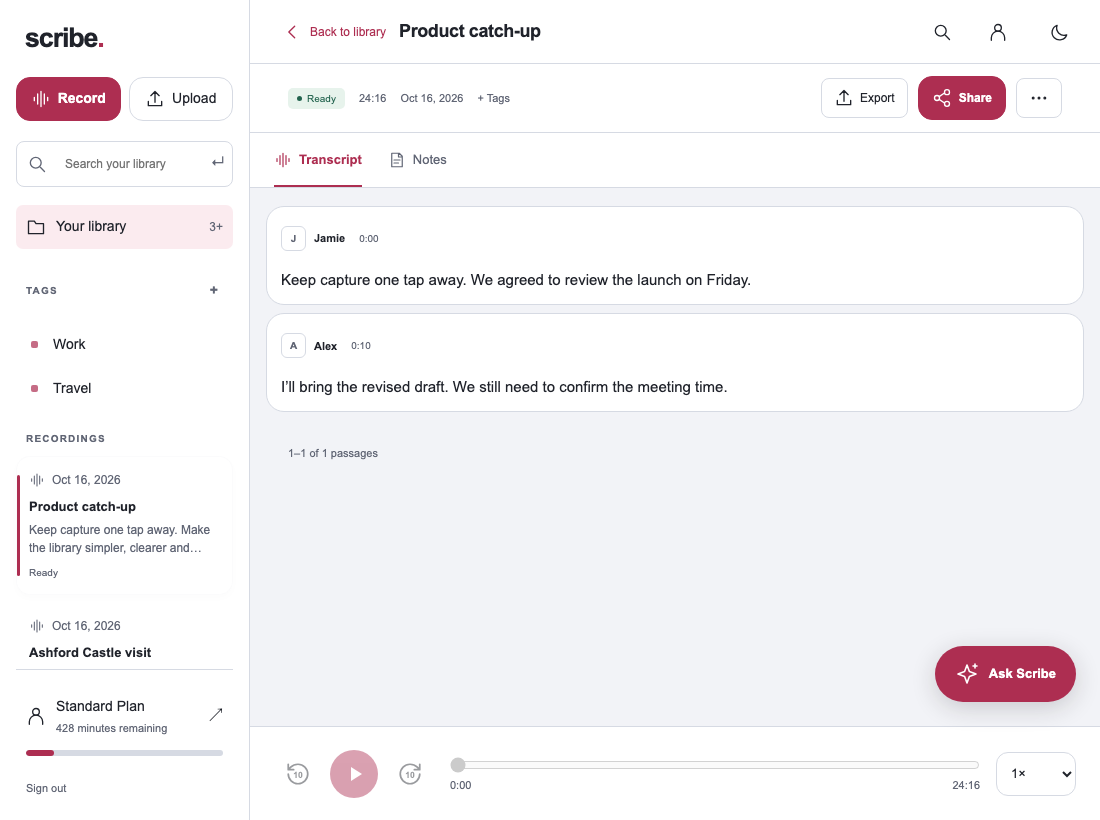
Scribe’s ordinary upload flow accepts supported recordings; it is not a bulk migration or account-to-account import tool. A transcript document alone is different from an audio file. See the upload guide for formats and limits.
Questions about choosing an Otter alternative
Is Scribe always cheaper?
Compare the plan that covers your actual usage, including duration and any required features. Monthly list prices do not settle annual, regional or organisation-specific costs.
Can I use Scribe without an Android phone?
Yes. The web app lets you create an account, record or upload audio, review transcripts and create notes in a browser.
Will I need to upload every recording twice?
No. Use one sample to evaluate the workflow. Move further material only if it makes sense for you, keeping the original files and any existing reviewed work.
Sources & further reading
Product instructions and links checked 17 October 2026. Community discussions informed the questions covered here; they are not product benchmarks or testimonials.