Transcription · A Scribe guide
How to Transcribe WhatsApp Voice Messages on Android
Read WhatsApp voice messages as text on Android. Try built-in transcripts, or save the audio and use Scribe for a transcript and notes.
Start with WhatsApp’s own Voice message transcripts setting if it is available for your device and language. If you need another workflow, save the voice message as an audio file and upload it to Scribe. Scribe’s web app accepts OGG and Opus, so you do not need to convert a supported WhatsApp recording into MP3 first. An account is required; Free includes 30 transcription minutes each month.
In this guide
Try WhatsApp’s built-in voice message transcripts
In WhatsApp, open Settings → Chats → Voice message transcripts, if that setting is offered. Turn the feature on and choose your transcript language. For a message, touch and hold the voice message, then look for the transcription action. The precise menus and language availability can vary with the app and device.
WhatsApp says its built-in transcripts are generated on your device. If you only want to read an occasional message, that may be all you need. Check WhatsApp’s official instructions before installing another tool.
A separate transcription library can help when you want to revisit a long message on your computer, organise several recordings or turn the message into a short set of notes. That means giving another service a copy of the audio, so use recordings you are entitled to upload and understand how they will be processed.
Save the voice message as a real audio file
Open the conversation and select the specific voice message. Look for Android’s Share action, which may appear in WhatsApp’s toolbar or overflow menu. Save a copy using an available file destination or transfer it to your computer. Android manufacturers and installed file apps offer different destinations, so the button may not literally say “Save to Files”.
The result needs to be an audio file you can select in a file picker. WhatsApp voice notes commonly use OGG or Opus. Preserve the original extension. Forwarding the message to another WhatsApp conversation, copying the chat text or taking a screenshot does not produce an uploadable audio file.
If your phone does not offer a file-saving destination, use a transfer option you already trust to obtain the recording on your computer. Avoid posting the recording to a public link just to download it. Keep the original message until you have checked that the saved file plays.
Upload the voice message to Scribe
- Open goscribe.co/app on your phone or computer. Sign in or create your Scribe account.
- Choose Upload and select the saved OGG, Opus or other supported audio file.
- Give it a useful title, such as “Supplier delivery update”, rather than leaving an unrecognisable message filename.
- Select the spoken language and check the minute estimate against your remaining allowance.
- Choose Upload & transcribe, then open the completed recording in your library.
- Read the transcript and replay important details before relying on them.
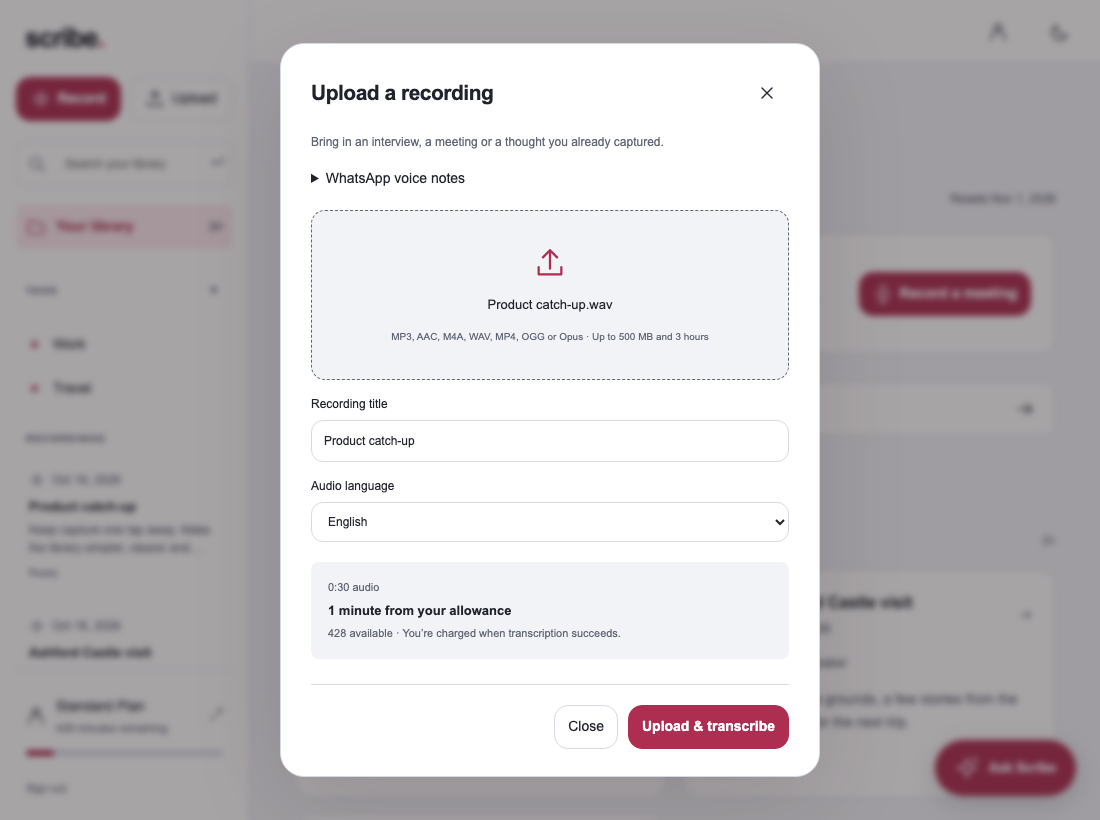
You can also use Scribe’s Android app for recording and importing audio. The file-upload route above works in the web app without depending on a particular Android sharing integration. Sign in with the same account to access uploaded notes on both devices.
Turn a long message into something you can answer
A full transcript is useful when you need the exact wording. For a long, rambling message, create Organised thoughts after transcription and use it as a starting point for the key requests. Check those requests against the transcript before replying.
For one short message, generating extra notes may be unnecessary. Read the text, check the uncertain parts and reply. Use the library when there is information you expect to need again.
What to check when WhatsApp transcription is missing or not working
The setting is missing: check that you are using an up-to-date official WhatsApp app and consult its current help for your device and language. Do not assume that a setting available on someone else’s phone is available on yours.
The language is wrong: check the configured transcript language. For Scribe uploads, choose the language actually spoken in the audio from the available list. A message that switches languages may need additional manual checking.
Words are missing: replay the original. Car noise, music, quiet speech and several people speaking together can all make a message difficult to understand. No app can reliably infer words that cannot be heard.
The saved file will not upload: check that you selected the audio file rather than a chat export, document or link. Keep OGG and Opus extensions intact. Our audio-to-text guide covers supported formats and file checks.
Questions about WhatsApp voice-to-text
Does Scribe read all my WhatsApp messages?
No. This workflow imports the recording you select. It does not connect Scribe to your chat history or automatically transcribe incoming messages.
Does it work when I cannot listen out loud?
You can read the resulting transcript silently, but the file must finish uploading and processing first. Check uncertain details with headphones when you can.
Is Scribe an unlimited free WhatsApp transcriber?
No. The Free plan has 30 transcription minutes each month across your Scribe usage. Longer or more frequent recordings may need a paid plan. See the allowances before uploading a collection of messages.
Sources & further reading
Product instructions and links checked 17 October 2026. Community discussions informed the questions covered here; they are not product benchmarks or testimonials.